Step 1: Open the page you want to translate
Go to your website and open the page you want to read in another language.
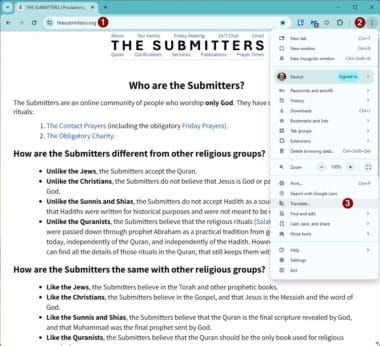
Step 2: Click the three dots
In the top-right corner of Google Chrome, click the three dots (⋮) to open the menu.
Step 3: Click “Translate”
From the menu, click Translate.
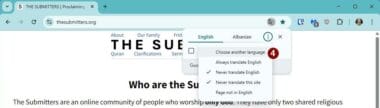
Step 4: Choose another language
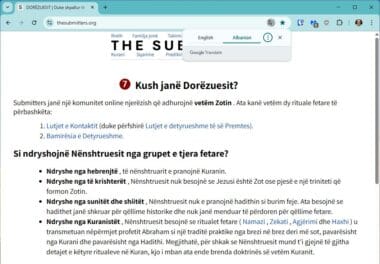
A small box will appear.
Click “Choose another language” (this text may appear in your computer’s language).
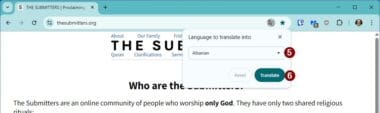
Step 5: Select your language
From the list, click the language you want to use.
Step 6: Click “Translate”
Click the Translate button.
Step 7: Done
The page will now be displayed in the language you selected.
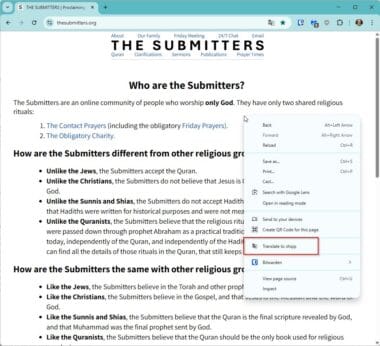
* If You Don’t See the Translate Option
-
Right-click anywhere on the page
-
Click “Translate to [your language]”
-
Then choose another language if needed by following the steps above.